Saturday, September 3, 2016

How to backup files?


With mobile devices everywhere, it is now a breeze to snap photos and capture videos.  Consequently, It has become increasingly important to make sure all of your digital creations are stored properly so we don’t lose them forever.

One of the best ways to safe keep your files is to store them on backup disks.  Doing so will guarantee your files are always safe even if catastrophes strike.

In this guide, we will walk through the steps for backing up files on optical disks such as CDs, DVDs and Blu-Ray discs.

You might ask why I have excluded Flash Drives and Portable Hard Drives as viable devices for backing up files.  The reason being these devices do not permanently store the files for you.  Your files can be accidentally erased or lost due to equipment failures.  They are also more expensive to use as the backup medium than optical disks.


To start backing up files, you will need the following setup in your computer: 
  • A blank disk for storing the files.  (Recordable Blu-ray disc, you can use CDs and DVDs as well.  I prefer the Blu-ray disc for its storage capacity.) 
  • The software to help us write the files to the Blu-ray disc.  (Power2Go by CyberLink which came with the Asus writer)

The steps outlined below can be used on any computer setup, in this tutorial, we will be using Windows 10 operating system. 


To start creating backup disk:
Step 1: Insert the recordable Blu-ray disc into the disk writer.

Step 2:  Start Power2Go software and create a Blu-ray Disc project.

Step 3: Identify the files to be backed up.


Step 4: Finalize your disc writing settings and create the backup disc.


Now, you have successfully created a backup disk, you will want to make sure it is well protected.
Here are some storage options I have used before and I rank them from 1 to 5, 1 being my favorite option and 5 for not recommend for the long term storage solution.

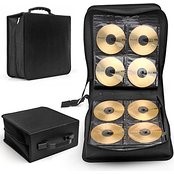
1. Disc Binder (Excellent for organizing large number of disks and it looks great on the bookshelves). 


2. Disk Refill Sheet (Cheaper to use than Disk Binder If you have a spare 3-rings binder, but not as sturdy as the Disk Binder).


3. Disk Spindles (Free since they usually come with your recordable disks, but a nightmare for organizing disks.)


 4. Disk Case (Costly to own and create clutters when you have many of them).


5. CD sleeve (Good for temporary storage, not good for the longevity of your disks and messy to organize).


With all of your files backed up and safely stored.  You might ask “how do I keep the discs and files organized?” and “How do I quickly get to my files?”

Please visit my blog post on How to Organize Backup Discs / Files?.


Thank you for readying and have fun keep your files safe!

James


How to Organize Backup Disks / Files?


Thank you for reading my previous blog on How to Backup Files?.

By now, I assume you have created backup disks to safe keeping your important files.

Some of the burning questions you may have might be how do I know where my files are? and What good are the backup discs if I cannot get to my files easily?.

In this post, I wish to present you my solution for tackling How to organize backup discs and files, my website, LetoFiles.

Of course, there are many options out there and a quick Google search will provide plenty of alternatives, LetoFiles is the free alternatives created to help us organizing our backup files.

First, to set the context, I am a firm believer of keep backups of everything.  A few things in life beat the sinking feeling of finding out, in the last minutes, my important files have gone missing and I might have lost them forever (This happens to all of us at least once in the life time and I vow not to experience it ever again, not if there is anything I can do about it).

Therefore, I created LetoFiles to help me organizing my file library.  69,000 files on 326 discs, with a total of 1.8 terabyte of data, and its contents are still growing.


With LetoFiles, you will be able to easily
  1. Search files using keywords or partial file name.
  2. Organize files using personalized Tags.
  3. Organize file by their types.
  4. How to get to your files automatically?
  5. Share files with friends. (New blog post coming soon)
and it is free to use.  

LetoFiles is also mobile device friendly, you will always know where your files are, anytime and anywhere.

Please like LetoFiles on Facebook and let me know what feature(s) you like to see added to the site that will help you organizing your file library better.


Thank you for reading this blog post and happy organizing your files.


James

Sunday, July 10, 2016

Why I created LetoFiles


In the late 1990, the computer parts were very expensive, especially for a high school senior.

The hard drive space was pricier than storing information on CDs and DVDs.  Logically, the optical disks became a cheap alternative to extend my data storage space.


A huge disadvantage of using the CDs and DVDs to store files was the lack of visibility on what have been stored on them.

I often found myself inserting the disks into the computer and manually searching for the files.  It was a time consuming exercise, all of my disks ended up collecting dust at the corner of my closet.

A few years later, the Blu-ray disks were introduced with a capacity of six times more than DVDs.  The Blu-ray disks have quickly become the go-to backup solution for me, but the problem remains, how do I easily find out what files are stored on my backup disks?

A few Google searches revealed a few promising solutions but they are not online solutions and you need to be at the computer in order access the information.

I decided to create my own application that meet my needs and after the 2 years of development, LetoFiles was created.

LetoFiles was built to help me manage all of my backup files.  It was great to be able quickly locate old photos and using keyword searches to file files, and they are all done without accessing the physical disks.

I hope people find LetoFiles useful and it helps you rediscovering the hidden treasures.

Happy Sunday,
James